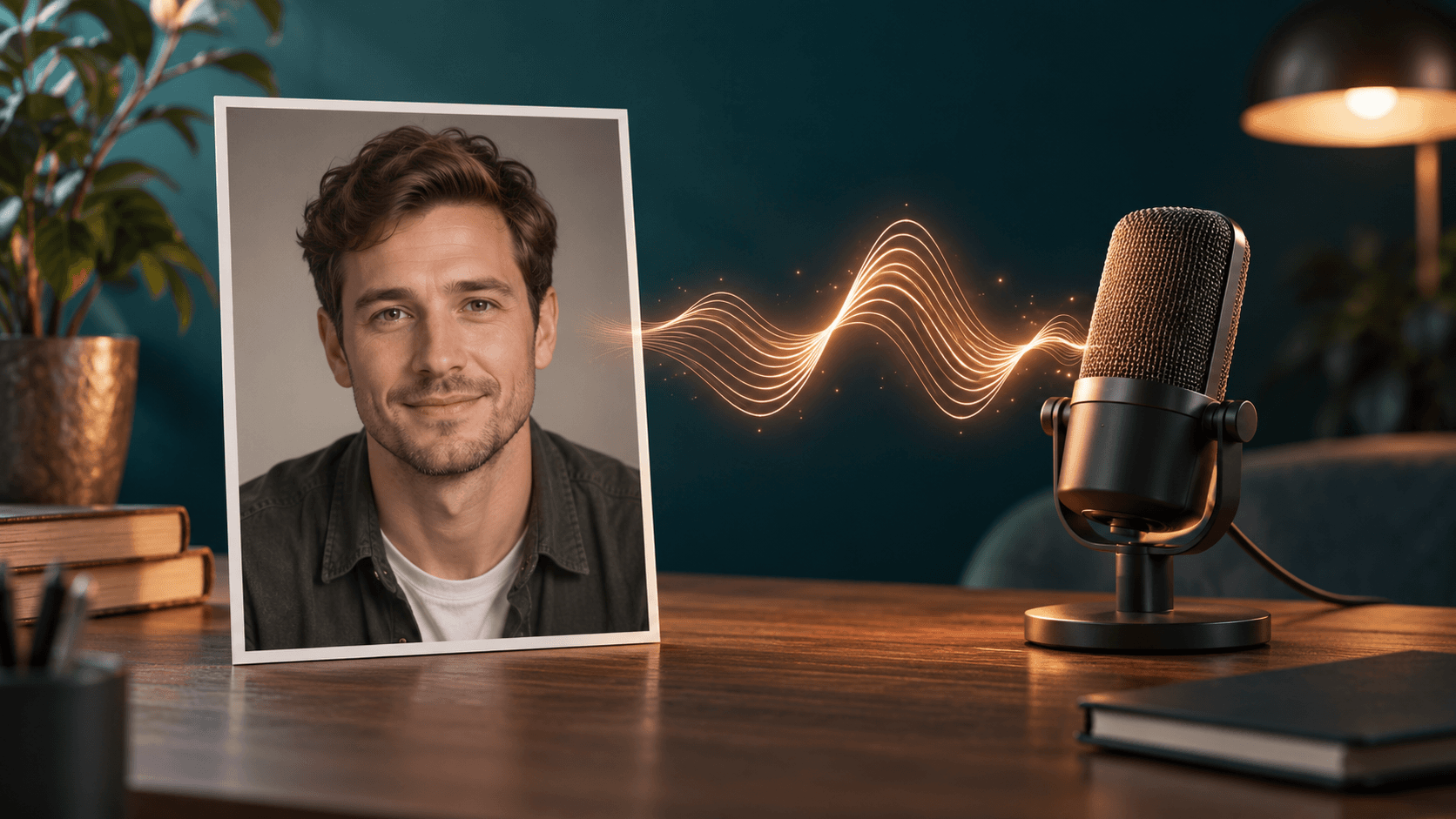
Talking Photo Tutorial: A Portrait and Recording in GenX
Prepare a portrait and audio, generate an OmniHuman talking video, and review lip movement, appearance and credit use before publishing.
Start with a portrait and recording
The GenX talking-photo tool takes a still portrait and an audio recording. OmniHuman 1.5 uses that recording to drive facial and body movement. Choose this route for a person delivering an existing narration.
Use a clear portrait with one visible face, even light and little obstruction around the mouth. Obtain permission for the intended use of both the image and the recording. Check the upload controls for current file requirements.
Generate a short first version
Open the talking-photo creator. Upload your portrait and add the recording. If you only have text, prepare narration separately with text-to-speech, download it, and upload that audio to the portrait tool.
Give a short presentation instruction, such as “A calm presenter facing the camera, with restrained gestures.” The audio supplies the words; the prompt provides presentation guidance. Review the model-compatible settings and current credit estimate before submitting.
Keep the task link while generation runs. If you refresh, the creator can recover the task's stored status and result. Starting another generation creates another request and uses credits again.
Review the finished video
Watch the whole clip with sound. Check the first syllables, pauses and final words for timing. Look for changes to facial proportions, hair, shoulders and clothing. Review any hand gestures independently of the face.
If the result is unstable, simplify the portrait or use a cleaner recording for your next attempt. Save a usable version before experimenting further. Generated motion varies with the inputs; this workflow does not guarantee exact likeness or perfect lip sync.
Credits and privacy
Each generation uses the existing credit system. The form's current estimate takes precedence over old examples of fixed prices. GenX preserves task ownership and private-output settings in the application. Generation uses the configured provider; it does not happen on your device.
Read the talking-photo workflow comparison if you also need script editing, a reusable avatar, or another voice workflow.
FAQ
Do I need a reference video?
No. This GenX route takes a portrait image and an audio file. For scene animation, use image-to-video.
Does the tool translate the recording?
No. Supply a recording in the language you want the portrait to speak.
Can I change the message after generation?
Prepare a new recording and generate another version. Inspect the new result before publishing it, and make the synthetic nature of the portrait clear where appropriate.
Mehr Beiträge
Sora 2 Prompts: Shot-Vorlagen und ein verbesserter Überarbeitungs-Workflow
Erstellen Sie klarere Sora 2 Prompts mit Original-Shot-Beispielen, Kamera- und Bewegungsanweisungen und einer praktischen Methode zur Überarbeitung von…


Introducing GenX.art - Every Frame is Art
We're excited to announce the official launch of GenX.art, an AI-powered artistic video creation platform that transforms how you create visual content.

Complete Guide to GenX Art Styles
Explore the 5 stunning artistic styles available in GenX and learn when to use each one.
Newsletter
Community beitreten
Abonnieren Sie unseren Newsletter für die neuesten Nachrichten